What is CCGO
CCGO is a professional and efficient NovelQuick downloader, dedicated to providing the most convenient video saving experience for users.
We use advanced parsing technology to support HD No Watermark downloads, allowing you to cherish every wonderful moment forever.
Key Features:
- 🚀 Fast Parsing: Paste the link and get the download URL in seconds.
- 💎 HD & No Watermark: Restore the original clarity of the video.
- 📱 Multi-Platform Support: Perfectly adapted for mobile phones (iOS/Android) and computer browsers.
How to Use (In Just 3 Steps)
- Copy Link: Click the "Share" button in the NovelQuick APP and select "Copy Link".
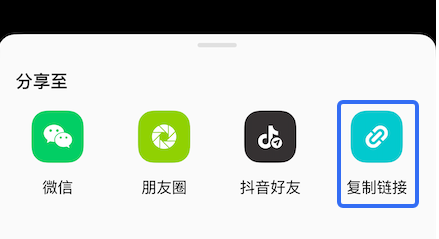
- Paste & Parse: Return to the CCGO homepage, paste the link into the input box, and click "Start Parse".
- Download & Save: After parsing successfully, select all the short dramas you need, click download to save them locally.
Frequently Asked Questions (FAQ)
Q: Is CCGO free?
A: Every new user has free parsing quotas. Once the free quota is exceeded, a subscription is required. This is mainly for the sustainable operation of the site. For details, see: Membership Subscription
Q: Do the downloaded videos have watermarks?
A: Our core feature is downloading. Videos downloaded via CCGO will automatically have platform watermarks removed, providing you with a clean viewing experience.
Q: Why does parsing sometimes fail?
A: Parsing failures usually occur for the following reasons:
- The video link is invalid or the video has been deleted by the original author.
- The video is set to "Private" or "Friends Only", making it inaccessible publicly.
- Unstable network connection. Please try refreshing the page or switching networks and trying again.
Q: Is batch downloading supported?
A: Currently, we mainly support single video parsing. However, the collection videos related to that video can be downloaded in batch.
Q: Where are the downloaded videos saved?
A:
- PC: Usually in the browser's default "Downloads" folder.
- Android: Can be found in the Gallery or the "Download" folder of the file manager.
- iOS (iPhone/iPad): If downloading via Safari, it is usually in the "Downloads" directory of the "Files" APP. You can "Save Video" to your album.